To visually show the state of a v-pot, the button images are dynamically built using a background image with superimposed state images.
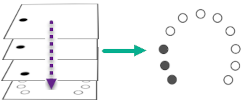 There are a couple of pre-defined state image configurations (Ring & Horizontal) but if you want to create your own set of state images you can do that. Please see the website documentation for details on how to create state images.
A V-pot can have 11 states (i.e. on a real Mackie Control there are 11 LEDs around the pot) and hence there is a need to define 11 state images (or 12, if you want a specific image for "no LED").
These images are stored in a folder and in order to use your own state images you must select the folder where your images are stored.
Click on "Select any file in folder..." and select any file in the folder you want to use for state images.
(Unfortunately there is no "Select folder" dialogue available in Stream Deck so you must select a file in that folder. The plugin will use the folder for that file as the base folder for your state images.)
Please note that you must not select any icon in the normal icon selection in the editor - if you do that, that image will always be shown regardless of what the plugin is trying to display.